Configuring and Using Secure Properties in Mule 4
3/6/2025
Introduction
Mule 4 is a powerful integration platform that connects various systems, applications, and data sources. Security is a critical aspect of any integration, especially when handling sensitive data like Client ID, Client Secret, User Credentials, API Keys, OAuth Tokens, AWS Keys, and more. To protect this information, MuleSoft offers the Secure Property module, which allows you to encrypt sensitive data within .yaml or .properties files.
This guide will walk you through the process of configuring and using secure properties in Mule 4, ensuring that your sensitive data remains protected from unauthorized access.
Steps to Configure Secure Properties in Mule 4
Step 1: Create a Configuration Properties File
Start by creating a configuration file in your Mule project. You can use either a YAML file (.yaml) or a Spring-formatted properties file (.properties). These files should be placed under src/main/resources.
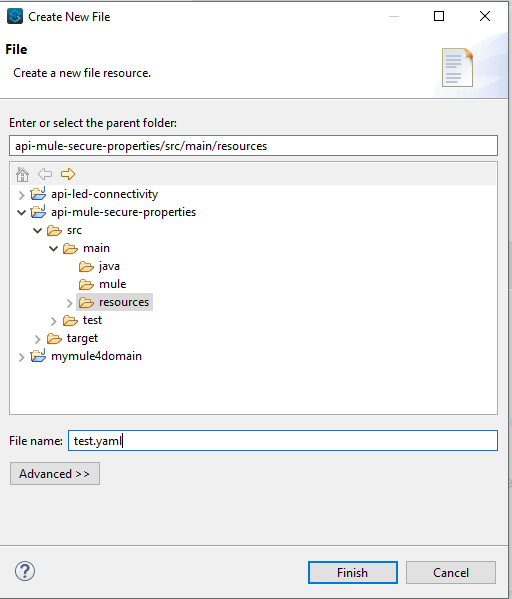
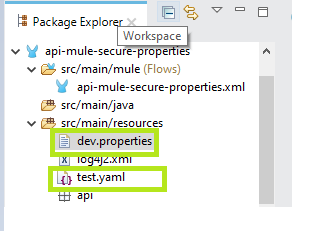
Sample Configuration Files
test.yaml (YAML file example):
http:
  port: "8081"
  username: "Priyanka@pp"
  password: "1254343654pp"
dev.properties (Properties file example):
encrypted.value1= sfdsgfdgfj1234566
encrypted.value2= xyz123568abc
testPropertyA=testValueA
testPropertyB=testValueB
Step 2: Encrypt Sensitive Properties
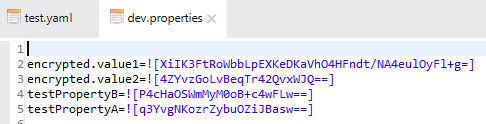
You can choose to encrypt the entire file or only specific properties. For individual properties, MuleSoft uses the format ![value] to enclose encrypted values.
To enable secure properties:
Install the Anypoint Enterprise Security Module
Open Anypoint Studio
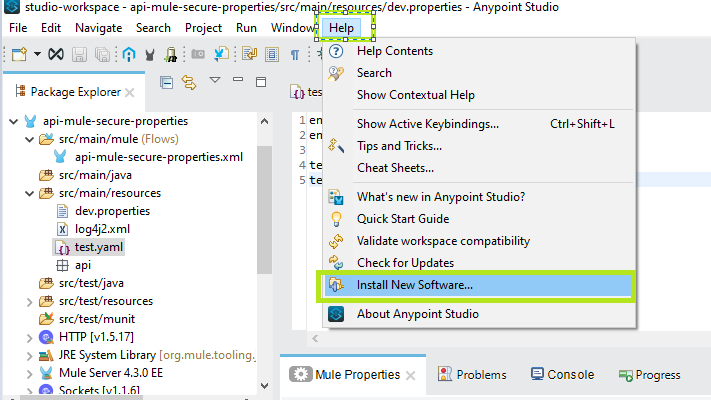
Navigate to Help → Install New Software
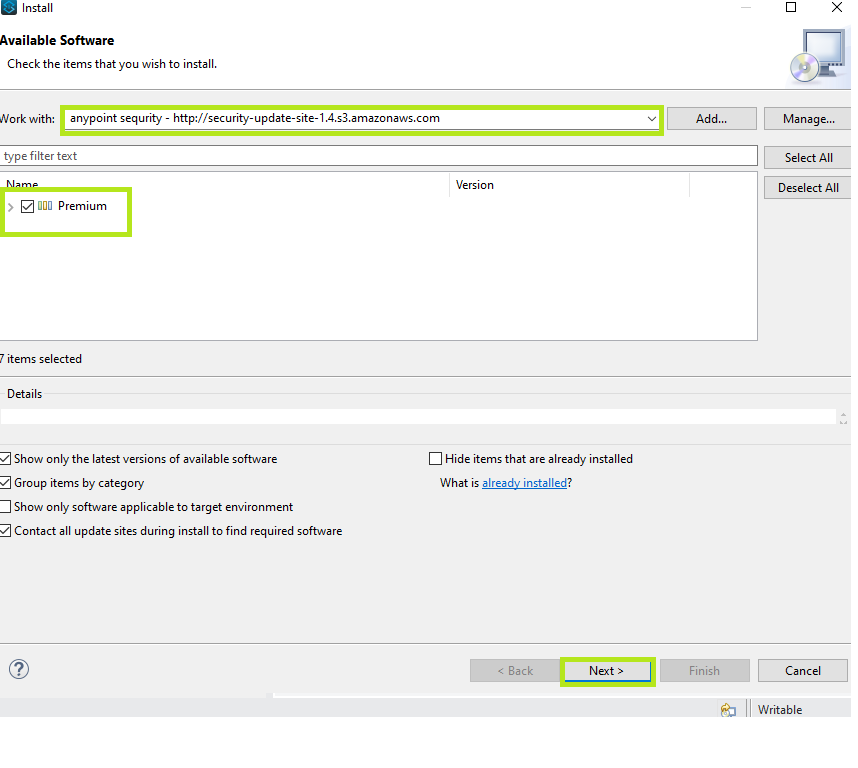
Click Add and enter the following details:
Name: Anypoint Enterprise Security
Location: http://security-update-site-1.4.s3.amazonaws.com
Select Anypoint Enterprise Security from the dropdown and check the Premium checkbox.
Click Next, accept the terms, and complete the installation.
Encrypt Properties in AnyPoint Studio
Right-click on dev.properties
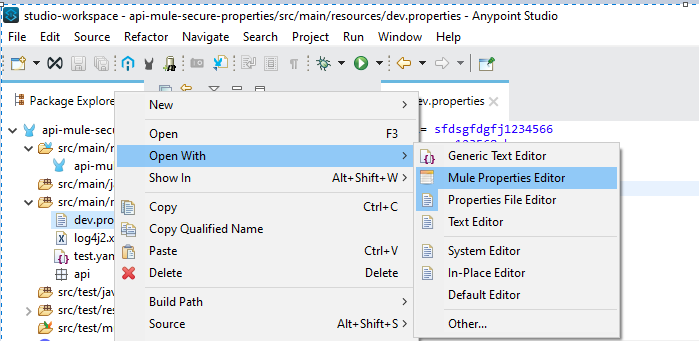
Select Open With → Mule Properties Editor
Double-click on any property key to edit
Click the Encrypt button
Choose an encryption algorithm (e.g., AES, Blowfish) and provide an encryption key (minimum 16 characters for AES)
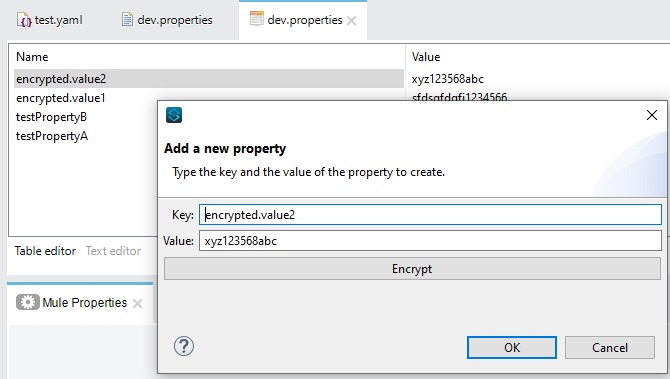
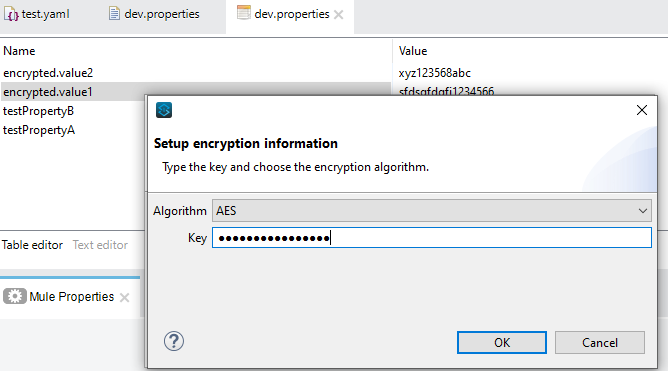
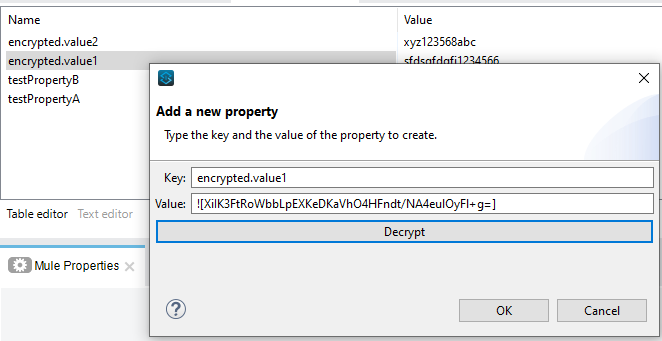
Click OK to save the encrypted value.
Repeat this process for all sensitive properties. Once encrypted, open the file in a text editor to verify the changes.
Step 3: Configure Secure Properties in Mule Project
To use encrypted properties in your Mule project:
Add the Mule Secure Configuration Properties Extension module as a dependency.
Configure the property file reference and specify the decryption key in the project.
Ensure the encryption key is securely managed and not exposed in the code repository.
Conclusion
By following these steps, you can successfully configure and use secure properties in Mule 4, ensuring that sensitive data remains protected. Implementing the Secure Property module helps maintain security compliance and safeguards critical credentials from unauthorized access. Implement these best practices today to enhance the security of your MuleSoft applications!